Strength to Tug of War Controls
PC keyboard, mobile touch, and movement tips for efficient strength training.
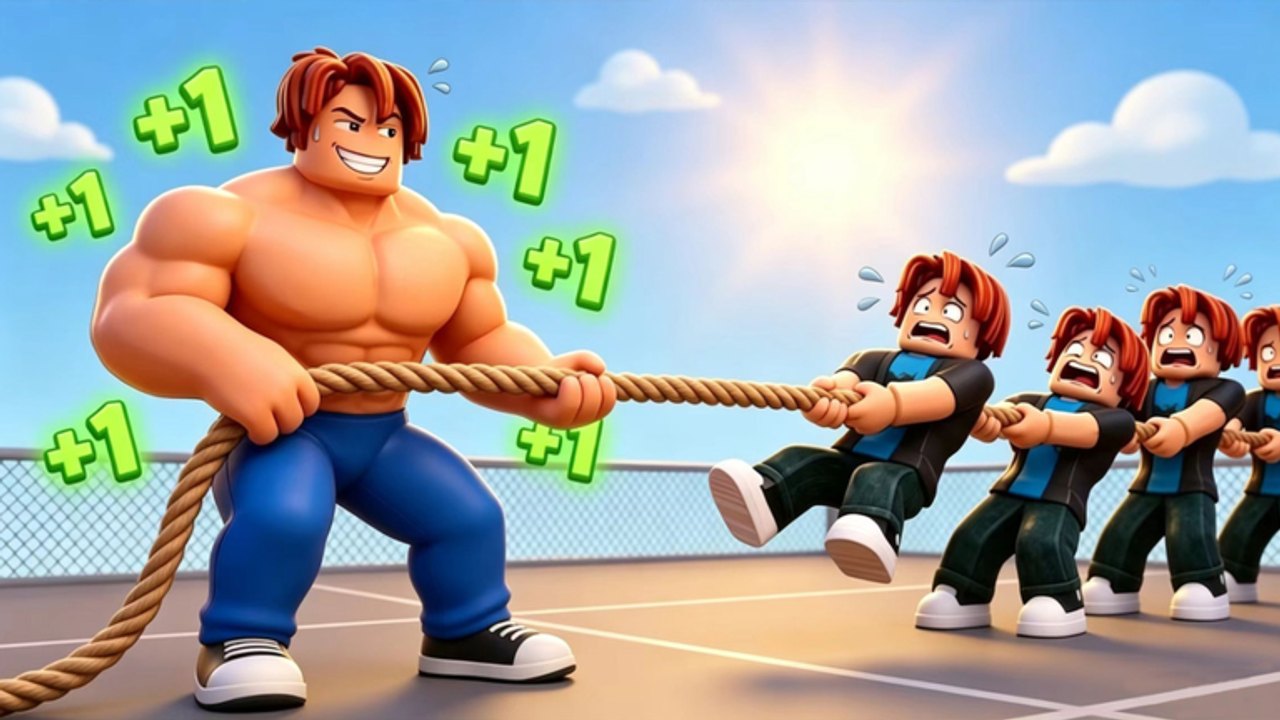
Movement is the core engine in +1 Strength to Tug of War by Tough Guy Studio. Your character earns Strength passively while walking, and every step feeds into equipment multipliers, tug-of-war wins, and rebirth progress. Understanding how to move on each platform saves hours of idle time and keeps your training loop smooth from the first world through late-game resets.
This page covers PC keyboard controls, mobile touch movement, and practical habits that help you gain Strength without fighting the camera or input lag. Pair these basics with the getting started guide if you are brand new, then move into equipment upgrades once you can afford your first multiplier.
PC keyboard controls
On desktop and laptop, Roblox uses standard third-person movement bindings unless you have changed them in Settings → Controls.
| Action | Default key |
|---|---|
| Move forward | W or Up Arrow |
| Move backward | S or Down Arrow |
| Strafe left | A or Left Arrow |
| Strafe right | D or Right Arrow |
| Jump | Space |
| Shift lock / camera toggle | Shift (varies by client) |
| Open Roblox menu | Esc |
Strength gain in this experience is tied to walking, not standing still. Hold W or use diagonal WASD to circle training lanes near spawn, rebirth zones, or equipment vendors. Jumping alone does not replace forward steps, so avoid spamming Space when you are trying to farm efficiently.
Camera control matters on PC. Right-click drag rotates the view; scroll zooms. If you lose track of your path, briefly release movement keys, re-center the camera toward your training loop, and resume walking. Many players bind Shift Lock so the character always faces the direction of travel, which makes long straight-line walks easier to maintain.
Mobile and tablet touch controls
Touch clients show a virtual joystick on the left side of the screen and a jump button on the right. Drag the joystick in any direction to move; partial tilts produce slower steps, while full tilt matches a held key on keyboard.
| Action | Touch input |
|---|---|
| Move | Left virtual joystick |
| Jump | Jump button (right side) |
| Camera | Drag on empty screen area |
| Menus | Tap UI buttons |
On phones, keep your thumb on the joystick and use small circular paths instead of long straight lines when the play area is crowded. Tablets offer more screen space—pinch to zoom the camera out slightly so you can see equipment prompts and tug-of-war portals without stopping.
Mobile players should disable unnecessary overlays (chat pop-ups, friend joins) when grinding Strength, because accidental taps pause movement. Lower graphics quality can also reduce stutter during busy Saturday update windows when servers fill up.
Training while moving
The golden rule is simple: if you are not walking, you are not progressing at the base rate. Menus for equipment and rebirth can stay open on many clients while movement continues, but confirm on your device before assuming idle menus still count steps.
Effective training patterns include:
- Figure-eight loops near cheap upgrade vendors so you never walk far between purchases.
- Back-and-forth lanes along straight paths in early worlds where collision geometry is minimal.
- Diagonal strafing on PC (W+A or W+D) to stay inside boost zones if an event adds temporary multipliers—check the updates hub after each Saturday patch.
When a tug-of-war match starts, finish the duel, then return immediately to your loop. Wins often gate rebirth or world unlocks, so alternating between duels and walking beats standing in hub areas waiting for notifications.
Controls tips for late-game players
After your first rebirth, movement feels slower until equipment catches up. Do not change your control scheme during that recovery window—muscle memory matters more than micro-optimizing keys mid-reset. Instead, upgrade gear using the tier list priority order and keep walking the same route you used pre-rebirth.
If you use a controller, Roblox maps left stick to movement and face buttons to jump. Controller players benefit from the same circular paths as mobile because precise strafing is harder than keyboard taps. Remap nothing until you understand the default layout; custom bindings can silently break menu confirm buttons after updates.
Related pages
- Equipment hub — how gear multiplies Strength per step
- Tier list — community upgrade priority framing
- Rebirth guide — when to reset for permanent bonuses
- Updates — Saturday patch checklist after control or UI changes
Frequently Asked Questions
Quick answers players look up before every session.
Does standing still give Strength in Strength to Tug of War?
No. Base Strength comes from walking. Stand-still grinding is far slower than continuous movement with upgraded equipment.
Can I change movement keys on PC?
Yes, through Roblox Settings → Controls. Keep forward/back keys easy to reach because you will hold them for long sessions.
Do mobile players gain Strength at the same rate as PC?
Step-based gains are the same if you move continuously. Touch players should use steady joystick input rather than tap-move tap-stop patterns.
Should I use Shift Lock while training?
Many players enable Shift Lock on PC for straighter paths. Try both modes for ten minutes and keep whichever reduces camera corrections.
Where do I learn upgrade order after learning controls?
Read the equipment hub and tier list next, then plan rebirth timing with the rebirth guide and rebirth planner tool.